
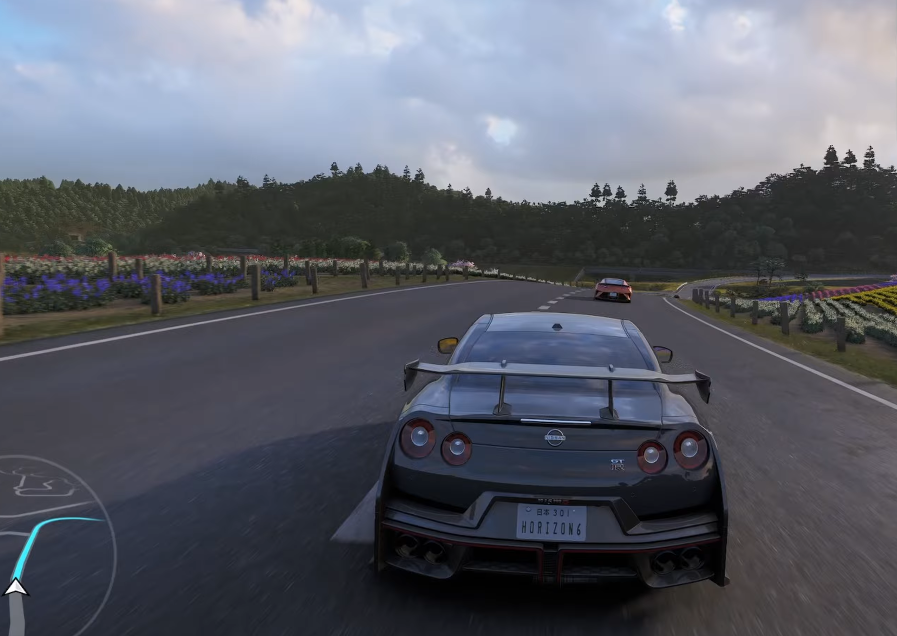
The FHE01 error in Forza Horizon 6 is a common crash code for PC players. It usually shows up during game startup, right after intro cutscenes, or while navigating menus. This error is part of a broader “FHE” crash category, which indicates a general game crash, rather than something specifically tied to graphics (FHC) or memory (FHF).
Here’s a breakdown of why this happens and how experienced players fix it.
Main Causes
1. Third-Party Software Conflicts
The most frequent culprit is software like Citrix Workspace App. Players report that uninstalling or fully disabling Citrix immediately solves the FHE01 crash. Any background apps that hook into system resources or graphics can potentially trigger this.
2. Controller & Steam Input Issues
Non-standard hardware setups—like PlayStation controllers on PC, Steam Input, or racing wheel rigs—often cause crashes at startup. A simple fix is:
- Disconnect your controller and launch the game with only keyboard/mouse.
- If using Steam, try disabling Steam Input globally.
Once the game loads successfully, reconnect your controller.
3. Overlay & Tuning Software Interference
Background apps like MSI Afterburner or RivaTuner Statistics Server (RTSS) can block the game from launching. Turning off these overlays or closing the programs usually stops the instant crash.
4. Outdated Graphics Drivers
Day-one driver updates are essential. Missing the latest GPU drivers can lead to crashes when the game tries to render environments or select cars.
5. Corrupt Game Files or Shader Cache
A corrupted installation or shader cache can cause the FHE01 error, especially in early access builds. Players often resolve this by:
- Verifying the integrity of the game files through the launcher.
- Clearing the DirectX shader cache in Windows Storage settings.
Quick Diagnostics
- Alt+Tab Trick: If the crash happens at the Turn 10 logo, press Alt + Tab when the logo appears, wait for the window background to load, then return to the game. Many players bypass the crash this way.
- Reinstall Visual C++ Redistributables: Make sure you have the latest full packages from Microsoft.
- Unhook Virtualization Software: Close any remote-work, virtual machines, or background VM environments temporarily.

 English
 Arabic
 French
 Spanish
 Portuguese
 Turkish
 Dutch
Dutch
 Italiano
 Russian
 Romaian
 Portuguese (Brazil)
 Greek
Greek